В этом примере показано, как создать простой отчет, объясняющий и иллюстрирующий магические квадраты - матрицы, столбцы, строки и диагонали которых складываются в одно и то же число. Посмотрите magic.
Примечание
Полный код примера включается после пошаговых инструкций.
Импортируйте базовые классы.
Чтобы исключить необходимость использования полных имен объектов Report и DOM API, используйте эти инструкции. Например, вместо использования mlreportgen.report.Report, вы можете использовать Report.
import mlreportgen.report.*
import mlreportgen.dom.*
Создание объекта отчета.
Создайте объект отчета. Использовать 'magic' в качестве имени файла и 'html' как тип отчета.
rpt = Report('magic','html'); Сведения о настройке свойств, применяемых ко всему отчету, см. в разделе mlreportgen.report.Report.
Добавление титульной страницы.
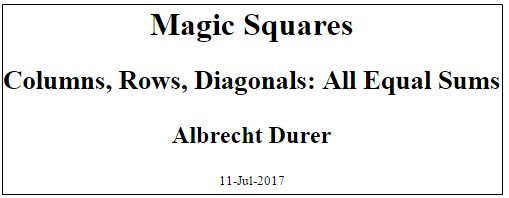
Создайте титульную страницу и укажите ее заголовок, подзаголовок и автора. Затем добавьте к отчету титульную страницу.
tp = TitlePage;
tp.Title = 'Magic Squares';
tp.Subtitle = 'Columns, Rows, Diagonals: All Equal Sums';
tp.Author = 'Albrecht Durer';
append(rpt,tp);
Дополнительные свойства страницы заголовка см. в разделе mlreportgen.report.TitlePage.
Добавление оглавления.
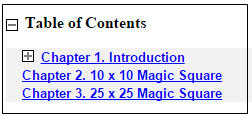
Добавьте в отчет объект оглавления по умолчанию.
append(rpt,TableOfContents);
Сведения о настройке оглавления см. в разделе mlreportgen.report.TableOfContents.
Добавьте главу и разделы главы.
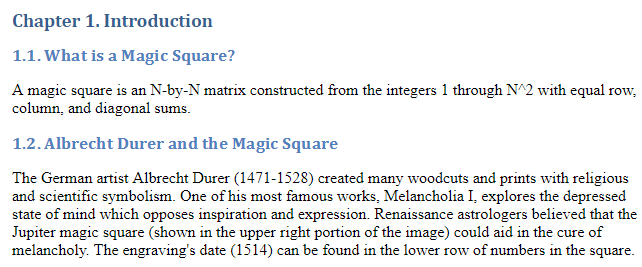
Создайте объект главы для введения и укажите заголовок главы. Добавьте раздел, добавьте абзац в этот раздел и добавьте этот раздел в главу. Создайте другой раздел и добавьте к нему абзац.
ch1 = Chapter;
ch1.Title = 'Introduction';
sec1 = Section;
sec1.Title = 'What is a Magic Square?';
para = Paragraph(['A magic square is an N-by-N matrix '...
'constructed from the integers 1 through N^2 '...
'with equal row, column, and diagonal sums.']);
append(sec1,para)
append(ch1,sec1)
sec2 = Section;
sec2.Title = 'Albrecht Durer and the Magic Square';
para = Paragraph([ ...
'The German artist Albrecht Durer (1471-1528) created '...
'many woodcuts and prints with religious and '...
'scientific symbolism. One of his most famous works, '...
'Melancholia I, explores the depressed state of mind '...
'which opposes inspiration and expression. '...
'Renaissance astrologers believed that the Jupiter '...
'magic square (shown in the upper right portion of '...
'the image) could aid in the cure of melancholy. The '...
'engraving''s date (1514) can be found in the '...
'lower row of numbers in the square.']);
append(sec2,para)
append(ch1,sec2)
Сведения о настройке глав и разделов см. в разделе mlreportgen.report.Chapter и mlreportgen.report.Section соответственно.
Добавьте фигуру.
Создание изображения Дюрера в окне фигуры. Создайте изображение на рисунке MATLAB. Добавьте рисунок во второй раздел вводной главы, а затем добавьте главу в отчет.
durerImage=load(which('durer.mat'),'-mat');
figure('Units','Pixels','Position',...
[200 200 size(durerImage.X,2)*.5 ...
size(durerImage.X,1)*.5 ]);
image(durerImage.X);
colormap(durerImage.map);
axis('image');
set(gca,'Xtick',[],'Ytick',[],...
'Units','normal','Position',[0 0 1 1]);
append(sec2,Figure)
append(rpt,ch1)
close gcf 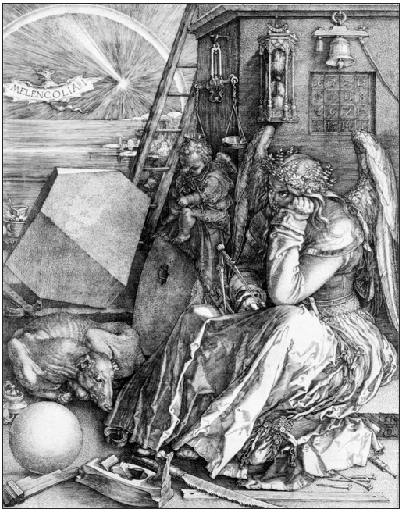
Дополнительные сведения о рисунках см. в разделе mlreportgen.report.Figure. Дополнительные сведения об изображениях см. в разделе mlreportgen.report.FormalImage.
Добавление таблицы.
Добавьте другой объект главы и укажите его название. Укажите код MATLAB для создания магического квадрата 10 на 10. Добавьте результаты в таблицу и задайте следующие свойства таблицы:
Разделители строк и столбцов
Граница таблицы
Выравнивание записей таблицы
Затем добавьте таблицу к главе и главу к отчету.
ch2 = Chapter();
ch2.Title = sprintf('10 x 10 Magic Square');

square = magic(10);
tbl = Table(square);

tbl.Style = {...
    RowSep('solid','black','1px'),...
    ColSep('solid','black','1px'),};
tbl.Border = 'double';
tbl.TableEntriesStyle = {HAlign('center')};

append(ch2,tbl);
append(rpt,ch2);
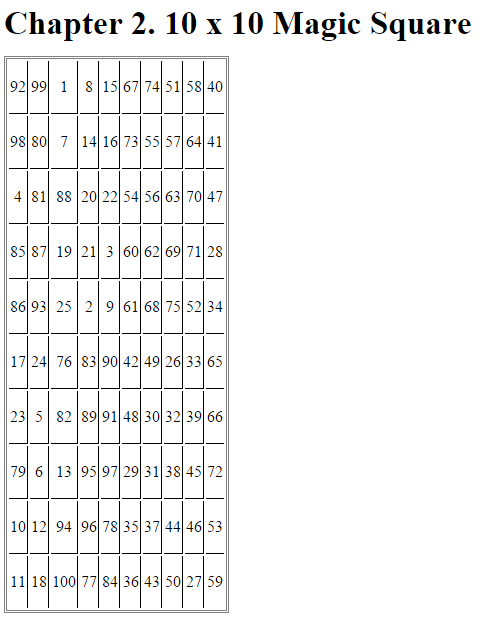
Дополнительные сведения о таблицах см. в разделе mlreportgen.dom.Table.
Добавьте рисунок MATLAB в главу.
Добавьте другой объект главы и укажите его название. Укажите код MATLAB для создания магического квадрата 25 на 25 и закодированной цветом фигуры магического квадрата. Затем создайте объект фигуры и задайте его высоту, ширину и заголовок. Добавьте рисунок к главе и главу к отчету.
ch3 = Chapter();
ch3.Title = sprintf('25 x 25 Magic Square');

square = magic(25);
clf;
imagesc(square)
set(gca,'Ydir','normal')
axis equal
axis tight

fig = Figure(gcf);
fig.Snapshot.Height = '4in';
fig.Snapshot.Width = '6in';
fig.Snapshot.Caption = sprintf('25 x 25 Magic Square');

append(ch3,fig);
append(rpt,ch3);
delete(gcf)
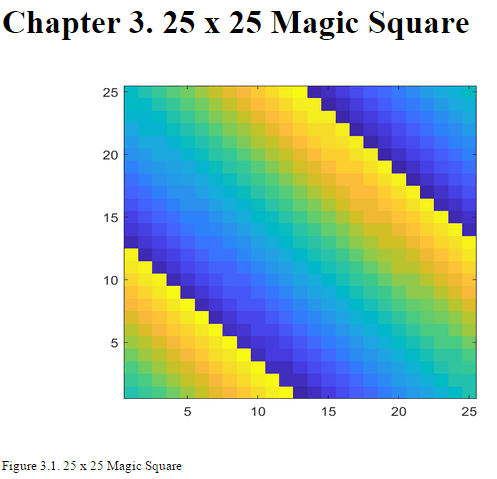
Дополнительные сведения о рисунках см. в разделе mlreportgen.report.Figure.
Закройте и запустите отчет.
close(rpt)
rptview(rpt)
Полный код:
import mlreportgen.report.*
import mlreportgen.dom.*
rpt = Report('magic','html');

tp = TitlePage;
tp.Title = 'Magic Squares';
tp.Subtitle = 'Columns, Rows, Diagonals: All Equal Sums';
tp.Author = 'Albrecht Durer';
append(rpt,tp);
append(rpt,TableOfContents);

ch1 = Chapter;
ch1.Title = 'Introduction';
sec1 = Section;
sec1.Title = 'What is a Magic Square?';
para = Paragraph(['A magic square is an N-by-N matrix '...
'constructed from the integers 1 through N^2 '...
'with equal row, column, and diagonal sums.']);
append(sec1,para)
append(ch1,sec1)

sec2=Section;
sec2.Title = 'Albrecht Durer and the Magic Square';
para = Paragraph([ ...
'The German artist Albrecht Durer (1471-1528) created '...
'many woodcuts and prints with religious and '...
'scientific symbolism. One of his most famous works, '...
'Melancholia I, explores the depressed state of mind '...
'which opposes inspiration and expression. '...
'Renaissance astrologers believed that the Jupiter '...
'magic square (shown in the upper right portion of '...
'the image) could aid in the cure of melancholy. The '...
'engraving''s date (1514) can be found in the '...
'lower row of numbers in the square.']);
append(sec2,para)
append(ch1,sec2)

durerImage=load(which('durer.mat'),'-mat');
figure('Units','Pixels','Position',...
[200 200 size(durerImage.X,2)*.5 ...
size(durerImage.X,1)*.5 ]);
image(durerImage.X);
colormap(durerImage.map);
axis('image');
set(gca,'Xtick',[],'Ytick',[],...
'Units','normal','Position',[0 0 1 1]);
append(sec2,Figure)
append(rpt,ch1)
close gcf

ch2 = Chapter();
ch2.Title = sprintf('10 x 10 Magic Square');
square = magic(10);
tbl = Table(square);
tbl.Style = {...
RowSep('solid','black','1px'),...
ColSep('solid','black','1px'),};
tbl.Border = 'double';
tbl.TableEntriesStyle = {HAlign('center')};
append(ch2,tbl);
append(rpt,ch2);

ch3 = Chapter();
ch3.Title = sprintf('25 x 25 Magic Square');
square = magic(25);
clf;
imagesc(square)
set(gca,'Ydir','normal')
axis equal
axis tight
fig = Figure(gcf);
fig.Snapshot.Height = '4in';
fig.Snapshot.Width = '6in';
fig.Snapshot.Caption = sprintf('25 x 25 Magic Square');
append(ch3,fig);
append(rpt,ch3);

delete(gcf)
close(rpt)
rptview(rpt)